
Guide
Motion Transfer AI for Pet Videos: Beyond the Otsukare Dance
Discover Motion Transfer AI: make the Otsukare cloud dance, explore more pet trends, or pair your photo with your own motion reference.
One place for your next pet video
Your pet has done the Otsukare paw dance. What could that same photo do in a different performance? Motion Transfer AI has prepared trends and a workspace for your own motion references. It can turn a pet or character photo into a video guided by a reference performance.
Browse the trend library, pick a performance, and supply the photos it asks for. The template loads its prepared reference and settings; your photo guides the appearance of the animal. You can also start with your own reference video when you have a different idea.
Start with the Otsukare cloud dance
The Otsukare Summer Dog AI template asks for one pet photo. Its roughly eight-second performance supplies the pastel clouds, cheek gestures, turn, camera and music. Your image guides the whole animal and visible outfit. A still photo is enough; your pet does not need to hold a dancing pose.
Choose an image with a clear face and as much of the body and front paws as possible. Open the template, preview the performance, upload the photo, then check the available settings and displayed credit cost. Generate when you are ready, and watch the finished clip in My creations. Faces, paws or markings can change, so review the result before sharing.
Find a different mood in the trend library
Motion Transfer brings pet dances and reactions together with dance, performance and other video ideas. Browsing the library gives you a place to discover another template without arranging each reference from scratch. Play the reference on the individual page: the same trend name can refer to different edits or casts.
For example, Bad Times AI on Motion Transfer uses one pet photo for a 30-second kitchen reaction. The Bad Times performance on this site uses a 15-second reference. Pick the version you want to watch, then check its photo slots and cost before generating.
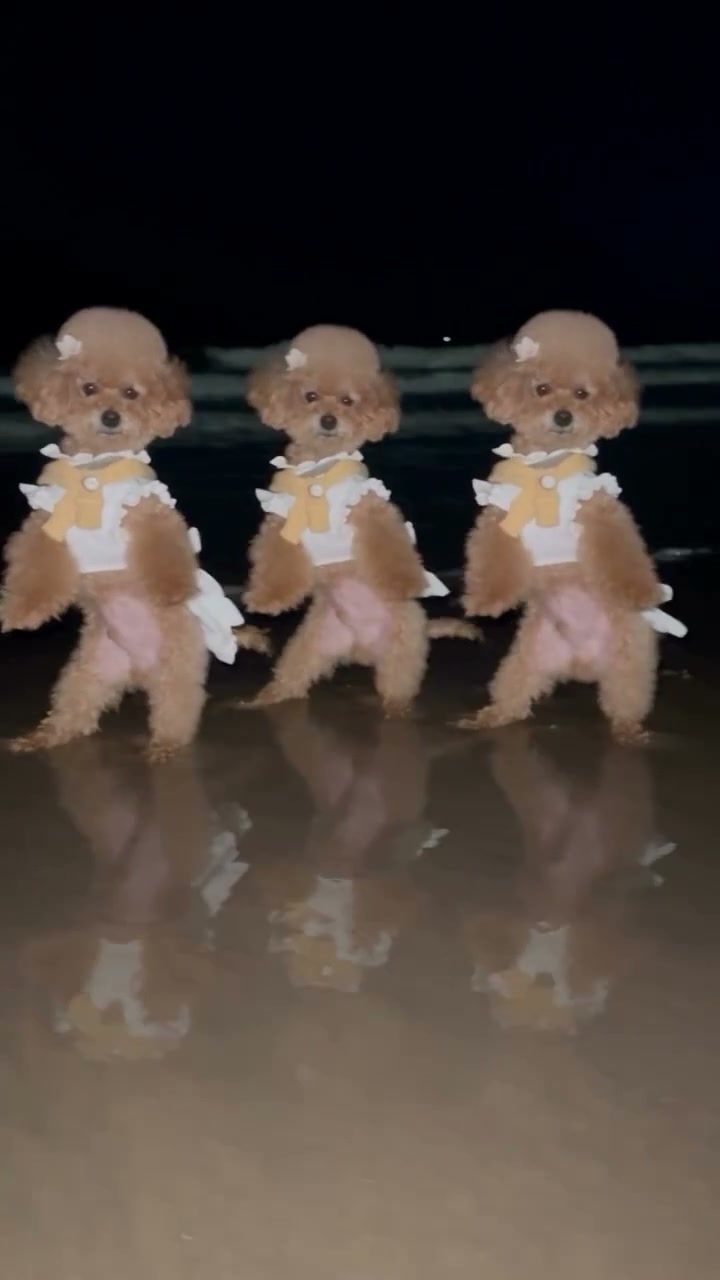
Photo slots tell you how many characters you can personalize. Put a Ring on It Dog asks for one pet photo for the center performer. Smalltown Boy AI asks for two photos, one for each opening role. Read the labels and choose a clear image for each required slot.
Why the prepared template matters
A template packages the reference performance and its setup for a particular idea. For the cloud dance, that means you can focus on choosing the pet photo instead of finding the choreography and building the same setup yourself. Different pages offer different controls, so inspect the page rather than assuming every template has the same duration, resolution or audio.
The result is still generated: a prepared reference cannot guarantee the exact same face, coat, paws, clothing or movement in every frame. Watch both close-ups and full-body shots. Community example clips are useful for seeing the kind of performance, but they are not a prediction of what your photo will produce.
Bring a motion of your own
Have a dance or gesture that you want to try outside the library? Open the Motion Transfer workspace and provide your own photo and reference video. A short clip with the important body parts visible throughout the action gives you a clear motion to work with. Use footage and likenesses you have permission to upload.
The workspace offers several models, including Kling Motion Control, Wan Animate and Seedance workflows. Photo counts, file limits, video length and controls depend on the model you choose. Review the form and credit estimate before submitting; a custom workflow may handle sound differently from a prepared trend.
Check credits, then keep the clip you like
Motion Transfer uses its own credit balance. The cost varies with the workflow and settings, and a new attempt is another task that can use more credits. Check the displayed amount and your balance before generating; the video passes used on this Otsukare site are separate.
Open My creations to follow the task and download the completed video. Watch with sound and inspect your pet through the whole movement. If you post the clip, follow the destination platform’s AI-label and music rules: a track in a template does not automatically grant rights for every use.
Ready for another idea? Explore Motion Transfer trends or open the workspace with a reference of your own.
Questions
Do I need to film my pet dancing?
No. For the Otsukare template on Motion Transfer, you supply one pet photo and the prepared reference supplies the performance. The finished animal and its movements are generated, so review the result for changes in appearance.
Can I use the same pet photo for other trends?
Yes, if you have permission to upload it. Check the requested roles on each page: some trends need one photo, while others have multiple separate photo slots.
Do my Otsukare Summer passes work on Motion Transfer?
Otsukare Summer uses video passes; Motion Transfer uses its own credits. Check the cost and balance on the service where you submit your task.
Can I upload a different dance?
Yes. Motion Transfer has a workspace for your own photo and reference video. Check the selected model for its supported files, duration, settings, and audio behavior, and use media you have permission to upload.
Guides for your next video
Choose your photos, match the roles, and bring the performance to life.
How to Choose an AI Pet Dance and Assign the Photos
Tell the five pet performances apart, prepare the right number of photos, assign one, two, or three roles, and check the shots that show a swap or a wrong dancer.
Read guide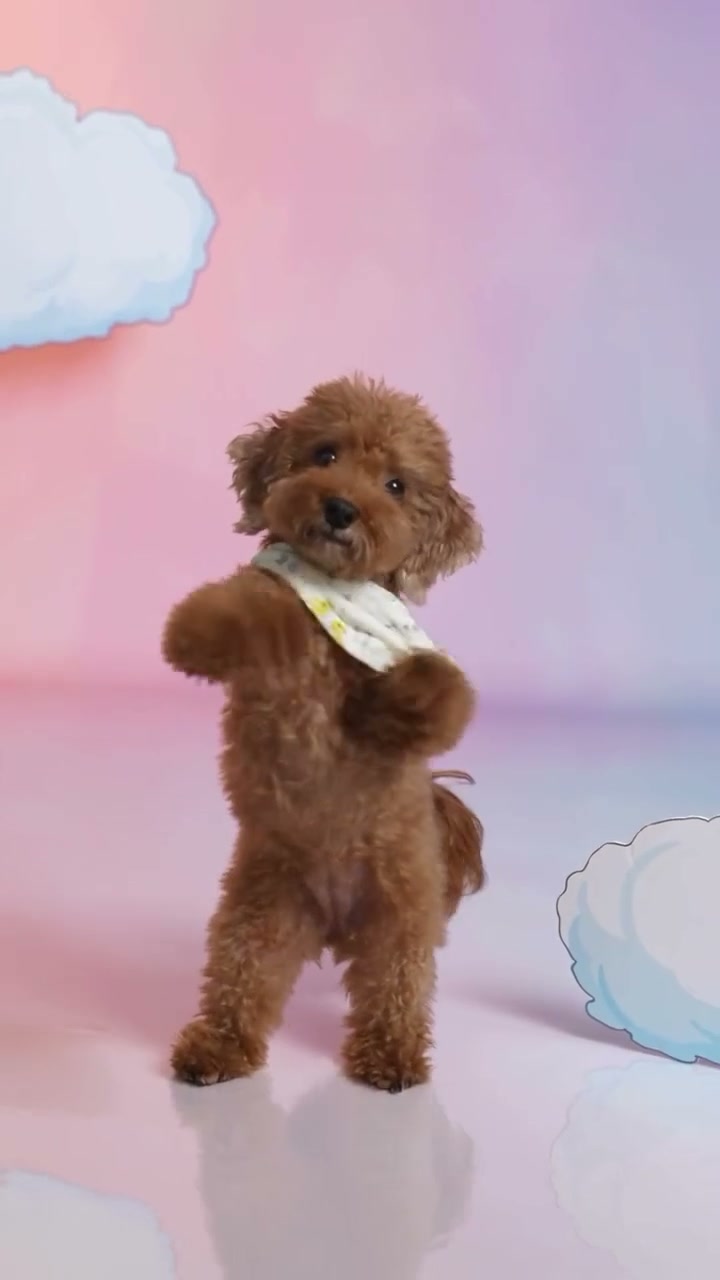
All guides
Browse the complete guide list.
Read guide